
Disclosure: This post may contain affiliate links. If you purchase through our links, we may earn a commission at no extra cost to you.
Last updated: July 2026
Tested by: Emanuel S.
Creating a presentation usually means spending more time adjusting layouts than working on the actual message. In this guide, I’ll show you how to use Gamma AI to generate, customize, and present a complete slide deck in around 10 minutes using its free plan.
Gamma won’t replace your judgment or research, but it can remove much of the repetitive design work that makes presentations take so long.
What Is Gamma AI?
Gamma is an AI-powered content creation platform that can produce presentations, documents, webpages, and other visual content from a prompt, pasted text, or an uploaded file.
Instead of working with traditional fixed slides, Gamma uses sections called cards. Each card functions like a flexible slide and automatically adjusts its layout as you add or remove content.
For presentation creation, Gamma can help with:
- Developing an initial outline
- Writing headings and supporting text
- Selecting layouts
- Adding images and visual elements
- Applying a consistent theme
- Rewriting individual sections
- Exporting or sharing the finished presentation
The free plan provides starter AI credits at signup. At the time of writing, Gamma lists 400 starter credits for new free accounts, and those credits do not automatically refill. Features and credit costs may change, so check the current plan information inside your account before starting an important project.
You can register without entering a credit card, which makes the free plan suitable for testing the presentation generator before deciding whether it belongs in your workflow.
For a deeper look at its strengths and limitations, read our Gamma AI review.
Can Gamma Really Create a Presentation in 10 Minutes?
Yes, but there’s an important distinction.
Gamma can generate the first complete version of a presentation within that time. That doesn’t mean every fact, image, and sentence will be ready to present without review.
In my testing, Gamma was much faster than building a presentation manually. It produced the structure, visual style, text, and images from one prompt. The result looked surprisingly complete, but I still needed to inspect the wording and visuals before considering it finished.
My recommendation is to treat Gamma as a fast presentation builder, not an automatic subject-matter expert. Let it handle the structure and design, then use your own knowledge to improve the substance.
The generation process is quite fast. You enter a prompt, and Gamma first gives you a preview of the text it plans to include on each card. This preview doesn’t use any credits, and you can edit the content, style, and other settings before generating the final presentation.
For my test, I asked Gamma to “make a presentation about Gamma” and selected stock photos as the image source. I chose stock photos because, in a previous test, I let Gamma generate the images and noticed several visual errors.
The finished presentation looked very good overall. If you don’t need something that has been reviewed in extreme detail, you could potentially use the initial result with only a few adjustments. However, I still think it’s always better to read through every card and make some edits before presenting it.
What You Need Before Using Gamma AI
You don’t need to prepare a full script, but you should know four things:
- The presentation topic
- The target audience
- The purpose of the presentation
- The approximate number of cards you need
For example, “Create a presentation about artificial intelligence” is technically a valid request, but it gives Gamma very little direction.
A stronger instruction would be:
“Create an eight-card presentation explaining the impact of artificial intelligence on education. The audience is university students with no technical background. Use clear language, practical examples, and a balanced tone. End with three responsible ways students can use AI.”
This tells Gamma what to create, who will see it, how detailed it should be, and what the final presentation should accomplish.
How to Use Gamma AI for Presentations
The following step-by-step process takes you from an empty account to a usable presentation draft.
Step 1: Create a Free Gamma Account
Go to Gamma and select the option to sign up for free. Depending on the current signup screen, you may be able to continue with Google, Apple, or an email address.
Gamma does not require a credit card to open a free account at the time of writing.
During my signup process, Gamma asked a few questions about how I planned to use the platform. This took slightly longer than I expected, but the questions were straightforward.
Once you complete the setup, Gamma takes you to the main dashboard. This is where your presentations, documents, and other projects will appear.
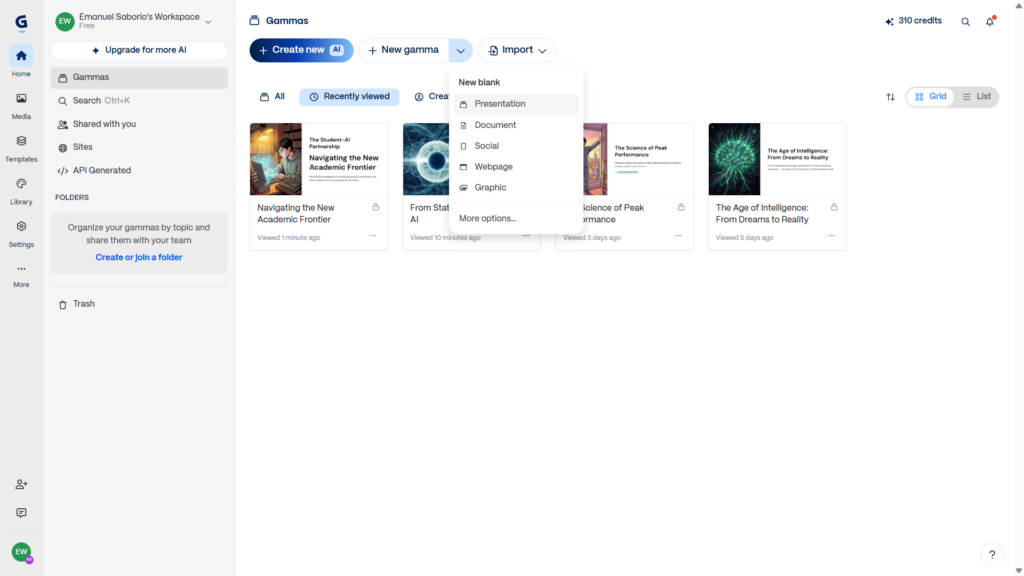
Step 2: Select “Create new AI”
From the dashboard, select Create new AI. Gamma has changed some interface labels over time, so your account may show similar wording such as Create new or New with AI.
You’ll then see the available creation methods. The main options generally include:
- Generate: Create new content from a prompt or idea.
- Paste: Turn existing notes or an outline into visual content.
- Import: Upload or bring in content from a supported document or presentation.
- Agent: Develop and refine a project with Gamma’s AI assistant, when available in your account.
For this Gamma AI presentation tutorial, choose Generate because we’re building a presentation from a written instruction.
Generate vs. Paste: Which One Should You Use?
Use Generate when you have a topic but haven’t written the content.
Use Paste when you already have reliable notes, research, or an outline. Gamma can organize your material without inventing the entire structure from scratch.
I prefer the Paste method for academic or work presentations where accuracy matters. It gives Gamma less freedom to fill gaps with generic information.
Generate is better when you need a quick draft, brainstorming material, or a starting structure. It’s also the easiest option for beginners learning how to use Gamma AI for the first time.
Step 3: Choose Presentation as the Format
Gamma can create more than slide decks, so make sure Presentation is selected as the content type.
The other formats may include documents, webpages, and social content. Selecting the wrong format can produce a layout that doesn’t work well when displayed on a screen.
After choosing Presentation, look for options related to:
- Language
- Number of cards
- Image source
- Visual style
The exact controls can vary as Gamma updates its generator.
For a presentation you need to deliver aloud, avoid placing too much text on each card. Choose a concise or brief text setting when available. Your cards should support what you say rather than contain your entire speech.
Step 4: Write a Detailed Gamma AI Prompt
Your prompt has the biggest influence on the first draft.
Include the following information:
- Topic
- Audience
- Goal
- Number of cards
- Desired tone
- Sections to cover
- Visual preferences
- Anything Gamma should avoid
Here’s a reusable Gamma AI presentation prompt:
Create a [number]-card presentation about [topic] for [audience]. The goal is to [purpose]. Use a [tone] tone and keep the text concise enough for a live presentation. Include sections covering [main sections]. Use [visual preference] visuals and avoid [unwanted content]. End with [desired conclusion or call to action].
For example:
“Create an eight-card presentation about the impact of AI on small businesses. The audience is small business owners who are new to AI. Explain practical uses, common limitations, privacy considerations, and three beginner-friendly ways to get started. Use a professional but approachable tone. Keep each card concise and use clean business-themed visuals. Avoid technical jargon and exaggerated claims.”
That prompt should produce a more focused deck than a request such as “Make a presentation about AI.”
My Mistake: Starting With a Prompt That Was Too Broad
The first prompt I used was essentially a request for a presentation about the impact of AI. Gamma understood the general subject, but I gave it too much freedom to decide the audience, depth, and direction.
What I wish I had known before starting is that Gamma needs context just as much as any other generative AI tool. Adding the audience and desired sections would have made the first result more specific and reduced the amount of editing afterward.
Don’t try to save five seconds by writing a one-line prompt. You’ll probably spend those saved seconds, and more, fixing generic cards later.
Step 5: Review the Generated Outline
Before creating the final cards, Gamma may display an outline or content preview.
This was one of the features I appreciated most during my test. I could see the direction of the presentation before Gamma built the fully designed version.
Review each proposed card and check whether the order makes sense. You may be able to:
- Rename a card
- Add or remove sections
- Reorder the outline
- Adjust the amount of text
- Change the number of cards
- Ask Gamma to rewrite the structure
Don’t automatically approve the outline just because it looks organized. Check that every section contributes to your presentation’s goal.
For example, a 10-minute classroom presentation probably doesn’t need three separate introductory cards. You’d be better off using that space for an example, comparison, or conclusion.
I think the preview is a fantastic feature, especially for people using Gamma’s free plan. It doesn’t consume credits, and it lets you edit the content, styles, and other settings before generating the presentation.
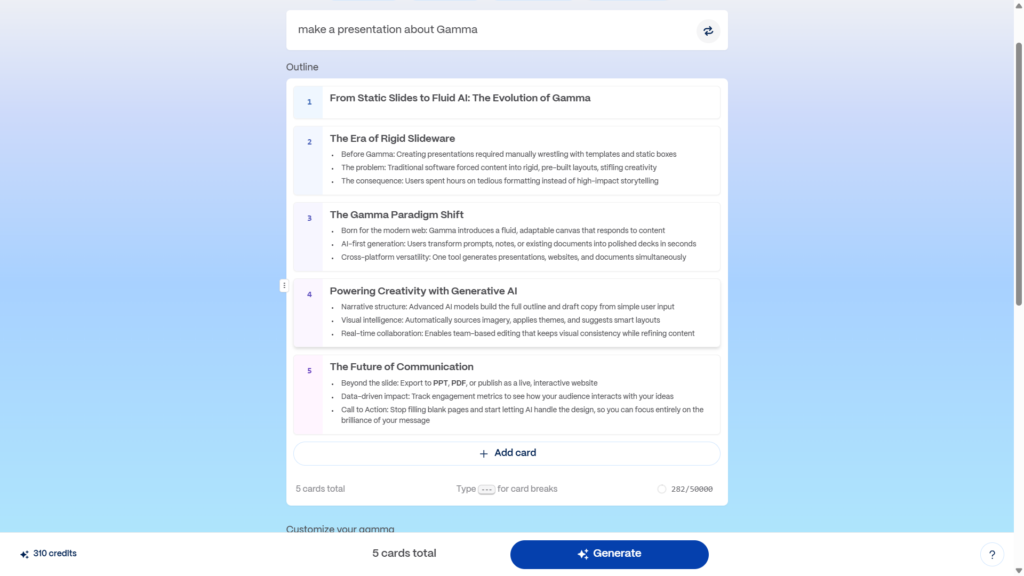
This is easily one of my favorite Gamma features. It works quickly, gives you more control over the final result, and can help you avoid wasting credits on a presentation that isn’t going in the direction you expected.
Step 6: Select a Theme and Visual Style
Gamma will give you theme choices before or during generation. Themes control elements such as:
- Fonts
- Backgrounds
- Accent styles
- Card layouts
- Overall visual mood
Choose a theme based on your audience, not only on what looks interesting.
A colorful experimental design may work for a creative portfolio but distract from a formal business report. For school, training, and general business presentations, I’d choose a clean theme with strong contrast and readable headings.
You may also see controls for the type of images Gamma should use. Depending on the current version and your available features, the options may include AI-generated images, stock-style visuals, illustrations, or other sources.
My advice is to keep the visual style consistent. A presentation that mixes photorealistic images, cartoons, 3D renders, and abstract graphics can feel disconnected even when every individual image looks good.
Should You Use Stock Photos or AI-Generated Images?
Stock photos are usually the safer choice when you need realistic people, workplace scenes, or professional-looking visuals without obvious errors.
AI-generated images give you more creative freedom, but they require closer inspection. They may contain strange hands, distorted objects, unreadable text, or details that don’t make sense.
Based on my testing, I’d use stock photos for a presentation that needs to look polished quickly. I’d choose AI-generated visuals when originality matters more and I have enough time to review and replace any problematic images.
Step 7: Generate the Presentation
After reviewing your settings, select the button to generate the presentation.
Gamma will build the cards, write the initial text, apply the selected theme, and add visuals. You’ll see the cards appear as the presentation is created.
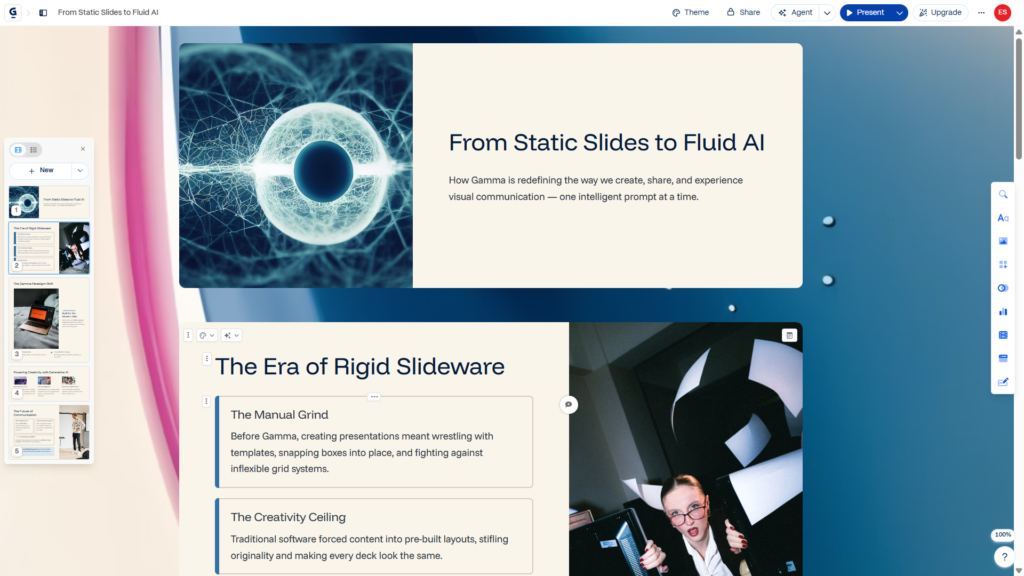
The result should be treated as your first draft.
During my test, I was impressed by how much Gamma completed automatically. Instead of giving me an empty template, it created something that already resembled a finished presentation.
However, fast generation doesn’t guarantee perfect accuracy. Read every card before sharing or presenting it.
Step 8: Edit the Text and Layout
Select any text block to edit it directly.
You can correct wording, add your own examples, remove unnecessary sentences, and replace generic statements with specific details.
Depending on your interface and account features, you may also see a sparkle icon or Agent option. These AI controls can help you:
- Rewrite a paragraph
- Shorten text
- Change the tone
- Add information
- Convert content into another format
- Restyle a card
- Create a new card
Use these tools selectively. Regenerating an entire presentation because of one weak sentence can change parts you already liked.
I recommend editing small problems manually and using AI only for larger structural changes. Direct editing is usually faster when you already know what the sentence should say.
Keep One Main Idea Per Card
Gamma’s cards can expand to hold more content than a traditional slide, but that doesn’t mean they should.
Each card should communicate one primary idea. If a card contains a long introduction, four examples, multiple statistics, and a conclusion, divide it into two or three cards.
A good test is to read the card from a few feet away. If the text looks like a document rather than a presentation, shorten it.
Step 9: Inspect Every Generated Image
AI-generated visuals can look polished at first glance while containing small coherence problems.
During my earlier Gamma testing, one generated image included an obvious issue with a hand. The rest of the presentation looked good, which made the mistake easy to miss.
Zoom in and inspect:
- Hands and fingers
- Faces
- Text inside images
- Logos
- Screens
- Product shapes
- Background objects
- Charts or diagrams
- Visual details related to your topic
Replace any image that appears inaccurate, distracting, or unrelated to the card.
This is especially important for educational and professional presentations. A strange visual can undermine an otherwise strong explanation.
In another test, I created a presentation about student productivity and allowed Gamma to generate the images. The presentation included five AI-generated visuals, and two of them had noticeable problems.
One image showed a person with extra fingers, while another appeared to combine two different bodies incorrectly. Everything else looked good, including the presentation’s structure and overall design.
These errors didn’t ruin the entire result, but they confirmed that you shouldn’t trust every generated image automatically. Review the visuals carefully and replace or adjust the ones that don’t look right.
Step 10: Check Facts and Add Your Own Experience
Gamma can generate plausible-sounding text, but you’re responsible for what you present.
Verify names, dates, statistics, quotations, and technical claims using reliable sources. Never assume a statement is correct because it fits naturally into the card.
You should also replace vague AI-generated examples with details your audience will recognize.
For instance, instead of leaving a card that says, “AI can improve workplace efficiency,” explain a specific task:
“A customer support team can use AI to draft initial responses, organize frequently asked questions, and summarize long support conversations for human review.”
That version is more useful because the audience can picture the workflow.
For help finding and verifying reliable information, read our guide on how to use Perplexity AI for research.
Step 11: Present, Share, or Export Your Deck
When your presentation is ready, select Present in the upper-right area of the editor.
Gamma may offer presentation options such as:
- Full screen
- In tab
Test the presentation before using it in front of an audience. Check the card order, scrolling behavior, embedded media, and text size.
You can also use the sharing controls to send a link or invite collaborators. Export options can include formats such as PDF and PowerPoint, although the exact options, branding, and limitations may depend on your current plan.
If you export the deck, open the downloaded file and inspect it separately. Layouts can occasionally shift when content moves between platforms.
Common Gamma AI Mistakes to Avoid
Using a Vague Prompt
A broad prompt creates broad content. Identify the audience, purpose, card count, and major sections before generating.
Accepting Every Card Without Reading It
A well-designed card can still contain weak or incorrect information. Review the text separately from the design.
Choosing Style Over Readability
Decorative themes aren’t always presentation-friendly. Prioritize contrast, font size, and clear visual hierarchy.
Adding Too Much Text
Gamma’s flexible cards may encourage you to keep adding paragraphs. Cut anything you can explain aloud.
Ignoring Visual Errors
Inspect AI-generated images closely. Replace visuals with distorted details, unreadable text, or misleading information.
Spending Credits on Repeated Full Regenerations
The free plan uses a limited starter credit balance. Edit individual cards whenever possible instead of rebuilding an entire deck to fix a small problem.
Gamma AI vs. Building Slides Manually
Gamma is better when speed and structure are the main priorities.
It can quickly transform an idea into a coherent sequence of cards, apply consistent styling, and fill empty space with relevant visual elements. This is useful when you’re facing a blank page or tight deadline.
Manual presentation software gives you more precise control. It may be better for strict brand guidelines, complicated animations, exact positioning, or projects where every visual element must follow a predefined template.
My preferred workflow is a combination of both approaches:
- Use Gamma to create the outline and initial visual draft.
- Replace generic text with original research and examples.
- Correct or replace questionable images.
- Export the presentation if another platform is required.
- Perform a final visual check before presenting.
Gamma saves the most time at the beginning. Human review creates the quality at the end.
You can also compare Gamma with other options in our guide to the best free AI tools for productivity or our ChatGPT vs. Claude vs. Gemini comparison.
Is the Gamma Free Plan Good Enough?
The free plan is good enough to learn how Gamma works and generate your first presentations.
At the time of writing, new free accounts receive a limited amount of starter AI credits rather than an endlessly renewing free allowance. Free presentations may also retain Gamma branding, and some advanced features may require a paid plan.
Because plan details can change, check Gamma’s current pricing page and the credit balance displayed in your account.
For occasional school projects, draft presentations, personal ideas, or testing, the free plan provides a practical starting point.
For frequent presentation creation, repeated AI editing, advanced branding, or team workflows, the limited credit balance may become restrictive.
How to Create a Better Gamma Presentation in Less Time
My best advice is to spend two minutes planning before asking Gamma to generate anything.
Write down:
- Who will see the presentation?
- What should they understand afterward?
- What are the three most important points?
- What action should they take next?
- Which facts require verification?
Then include those answers in your prompt.
This small preparation step improves the outline, reduces unnecessary cards, and helps Gamma choose a more appropriate tone. It’s much faster than repeatedly regenerating a presentation with slightly different instructions.
Frequently Asked Questions
Is Gamma AI free to use?
Gamma offers a free plan with starter AI credits. At the time of writing, the free plan does not require a credit card, but the starter credits are limited and do not automatically refill. Check the current pricing page for the latest allowance and restrictions.
Can Gamma create a PowerPoint presentation?
Gamma can create a complete presentation from a prompt, pasted text, or imported content. It also provides presentation export options, including PowerPoint in supported accounts. Review the exported file because some layouts may look different outside Gamma.
How long does Gamma take to create a presentation?
Gamma can generate the initial version of a presentation within a few minutes. A simple deck can be generated and lightly edited in around 10 minutes, but research-heavy or professional presentations need additional time for fact-checking and customization.
Do I need to write the presentation content first?
No. The Generate option can write an initial presentation from a topic and instructions. However, using your own outline or verified notes usually produces a more accurate and original result.
Can I use Gamma AI for school presentations?
Yes. Gamma can help students organize topics, build outlines, and design presentation cards. Students should still verify every claim, follow their school’s AI policies, cite original sources, and rewrite generic content in their own words.
Does Gamma add images automatically?
Gamma can add visuals during presentation generation. The available image sources and styles may depend on the current interface and plan. Inspect every generated image for strange details, irrelevant elements, or inaccurate information.
Final Verdict
Gamma is one of the more practical AI tools I’ve tested for turning a basic idea into a visually complete presentation. Its biggest strength isn’t that it creates perfect content, it’s that it removes the slow, frustrating process of starting with an empty slide.
I’d recommend it for first drafts, school presentations, internal updates, simple business decks, and anyone who struggles with presentation design. I wouldn’t recommend presenting the raw output without checking the text and images first.
Give Gamma a detailed prompt, review the outline before generation, and spend the final few minutes adding your own knowledge. That’s the difference between a presentation that merely looks AI-generated and one that feels genuinely useful.
Official Gamma Resources
For the latest information about Gamma’s features and free plan, visit these official resources:
- Gamma Plans and Pricing — Compare the current plans, starter credits, branding options, and available features.
- How to Create a Presentation in Gamma — Gamma’s official instructions for using Generate, Paste, and Import.
- How to Export a Gamma Presentation — Learn how Gamma presentations can be exported to PDF, PNG, or PowerPoint.